
Goldrake, Mazinga Z, Jeeg Robot, Captain Harlock — the anime robots and cartoons of the 80s and 90s that shaped an...
Latest posts
-
 80s and 90s Anime Robots — The Nostalgia That Never FadesRead more
 -
 microSD Backup and Restore for Raspberry Pi — Batocera and RetroPieRead more
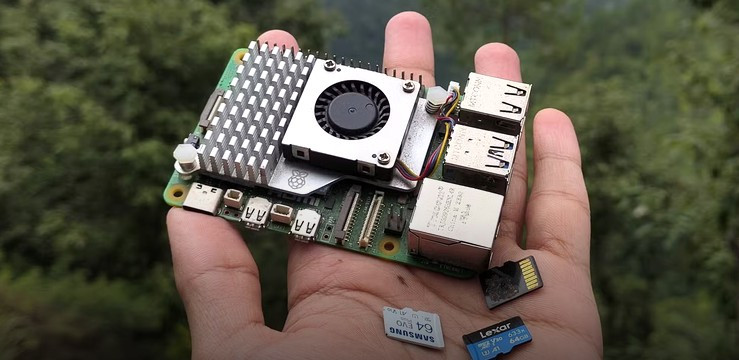
Running Batocera or RetroPie on your Raspberry Pi and want to protect your setup? Creating a microSD backup is simple...
-
 ArcadeVGA ATI 7470 on Arcade Cabinet: CRT Boot with ATOM-15 BIOS FlashRead more
Complete guide to flashing the BIOS of an ATI 7470 graphics card with ATOM-15 to get video output from boot on CRT...
-
 Nextion Intelligent Series: FFC GPIO Connector Pinout - Complete GuideRead more
The FFC GPIO connector on Nextion Intelligent Series displays is undocumented by Nextion. After an in-depth analysis...
-
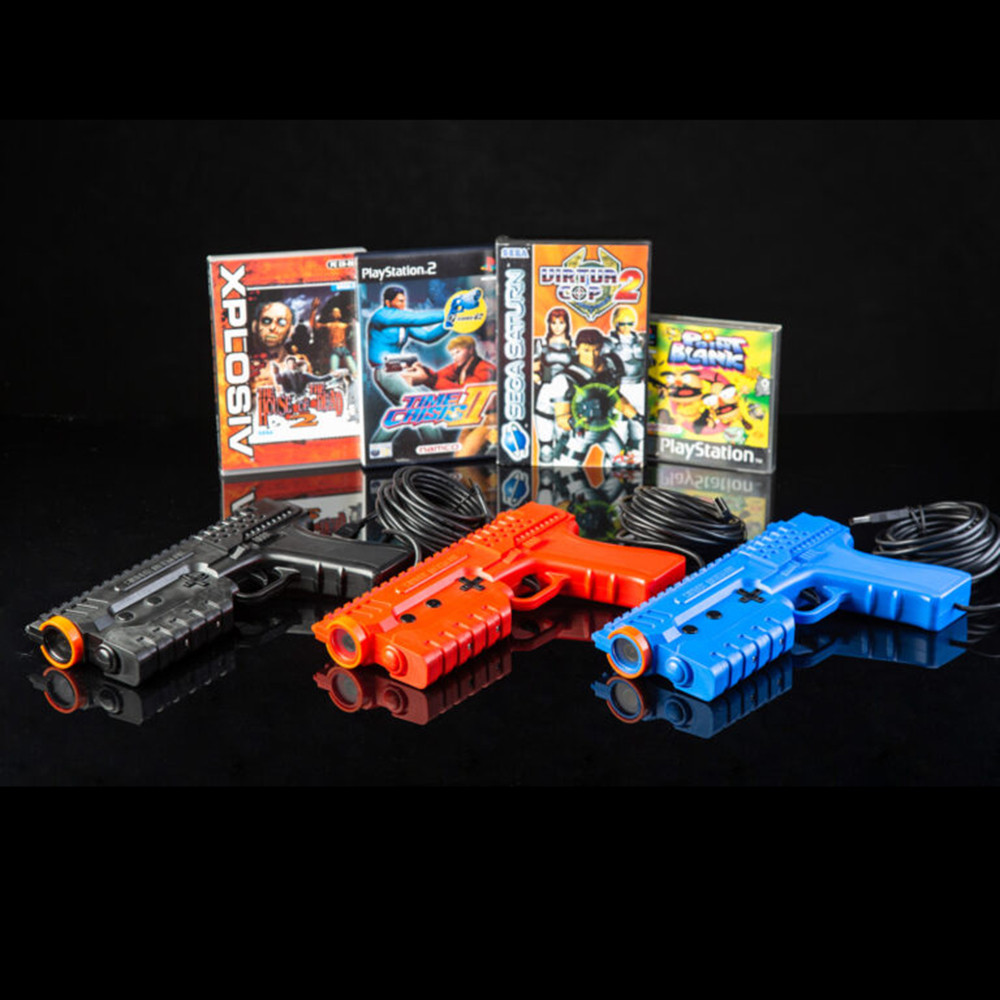 Sinden Lightgun: the arcade gun that actually works on any modern TVRead more
Ever tried using an arcade light gun on a modern TV? It doesn't work. The Sinden Lightgun solved this problem in a...
Blog categories
Search in blog
Archived posts
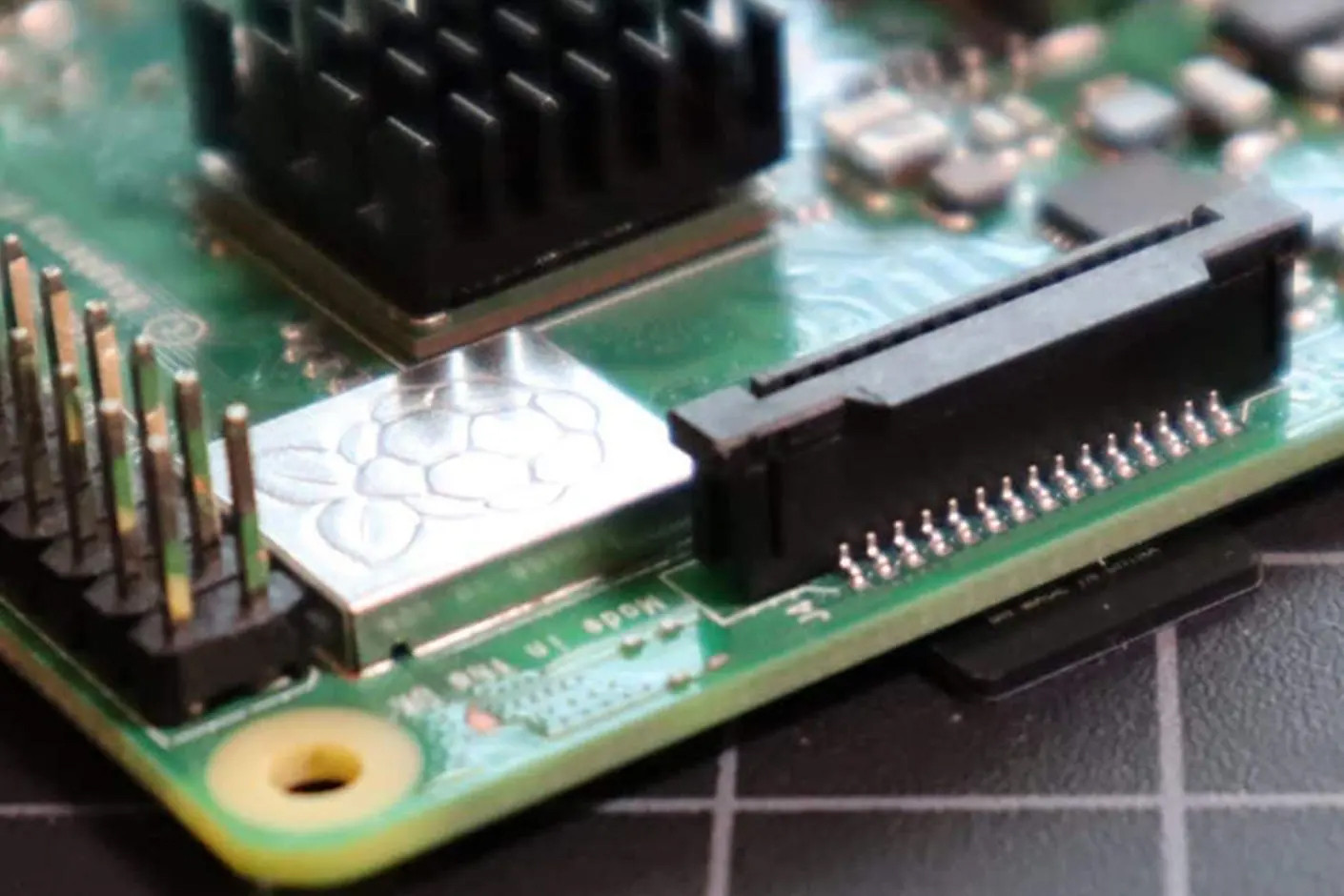
microSD Backup and Restore for Raspberry Pi — Batocera and RetroPie
The Raspberry Pi is a mini-computer that runs its operating system from a microSD card — just like a smartphone. Batocera is today the most popular retrogaming operating system for Raspberry Pi, loved for its ease of setup and support for a huge number of emulators. RetroPie is also widely used, especially on older setups.
If you're about to make changes and aren't sure how they'll turn out, or you simply want to protect yourself from a microSD failure (more common than you'd think), creating a backup is the right move. With this guide you can save the entire card as an .IMG file and restore it onto a new microSD in just a few steps.
Required software (Windows)
- Win32DiskImager — creates the .IMG backup file from the microSD — download from SourceForge
- BalenaEtcher — restores the .IMG file onto a new microSD — download from balena.io
Watch your disk space. The .IMG file will be the same size as the source microSD: if you're backing up a 256 GB card, your PC needs 256 GB of free space available.
Backup procedure
- Connect the source microSD to your PC via the built-in slot, a microSD/SD adapter, or a microSD/USB adapter.
- Open Win32DiskImager and in the "Image File" field choose the path and filename for your backup — for example
C:/Users/User/Desktop/imgBatocera.img. - In the "Device" menu select the drive letter corresponding to your microSD.
- Click "Read" and wait for the process to complete — it may take several hours depending on the size of the microSD.
- Remove the microSD from the PC: in the folder you selected you'll find the .IMG file — that's your backup copy.
Restore procedure
If you already have a previously saved .IMG file — for example a Batocera backup already configured with your ROMs and settings — or found one online you want to try, start directly from here.
- Insert the new microSD into your PC slot.
- Open BalenaEtcher.
- Select the .IMG file via the "Flash from file" menu.
- Select the destination microSD via "Select target".
- Click Flash and wait for the process to complete.
- Insert the cloned microSD into the Raspberry Pi and boot — the system will be identical to the original, with all your Batocera (or RetroPie) settings already in place.
Why Batocera is the best choice today
If you're starting from scratch or thinking about switching systems, Batocera is the recommended choice for most users today. It runs directly from the microSD with no installation needed, supports hundreds of emulators, updates easily and comes with a modern graphical interface ready to go. RetroPie remains a valid alternative for those who prefer more control and customisation, but requires more setup time.
Protect your Raspberry Pi with the right case
Beyond software backups, physically protecting your Raspberry Pi is just as important. A good case prevents damage from bumps, dust and overheating — especially in arcade builds where the mini-computer works in less-than-gentle environments.
Find the right case for your Raspberry Pi.
Browse all cases and enclosures on Digitalkey.it →
Did you follow this guide with a different version of Batocera or RetroPie? Get in touch — we'll update the article with your feedback.
Related posts
-
Sinden Lightgun: the arcade gun that actually works on any modern TV
Ever tried using an arcade light gun on a modern TV? It doesn't work. The Sinden Lightgun solved this problem in a...Read more
-
Nextion Intelligent Series: FFC GPIO Connector Pinout - Complete Guide
The FFC GPIO connector on Nextion Intelligent Series displays is undocumented by Nextion. After an in-depth analysis...Read more
-
ArcadeVGA ATI 7470 on Arcade Cabinet: CRT Boot with ATOM-15 BIOS Flash
Complete guide to flashing the BIOS of an ATI 7470 graphics card with ATOM-15 to get video output from boot on CRT...Read more
-
80s and 90s Anime Robots — The Nostalgia That Never Fades
Goldrake, Mazinga Z, Jeeg Robot, Captain Harlock — the anime robots and cartoons of the 80s and 90s that shaped an...Read more
Leave a comment